Settings
The AutoCheck Report extension includes several settings to configure its integration with your Dealer Management System. These settings are located in the backend under:
Listing Type* → Settings → AutoCheck tab
*Your listing type may be Cars, Boats, Trucks, Trailers, etc. The example below uses Inventory.
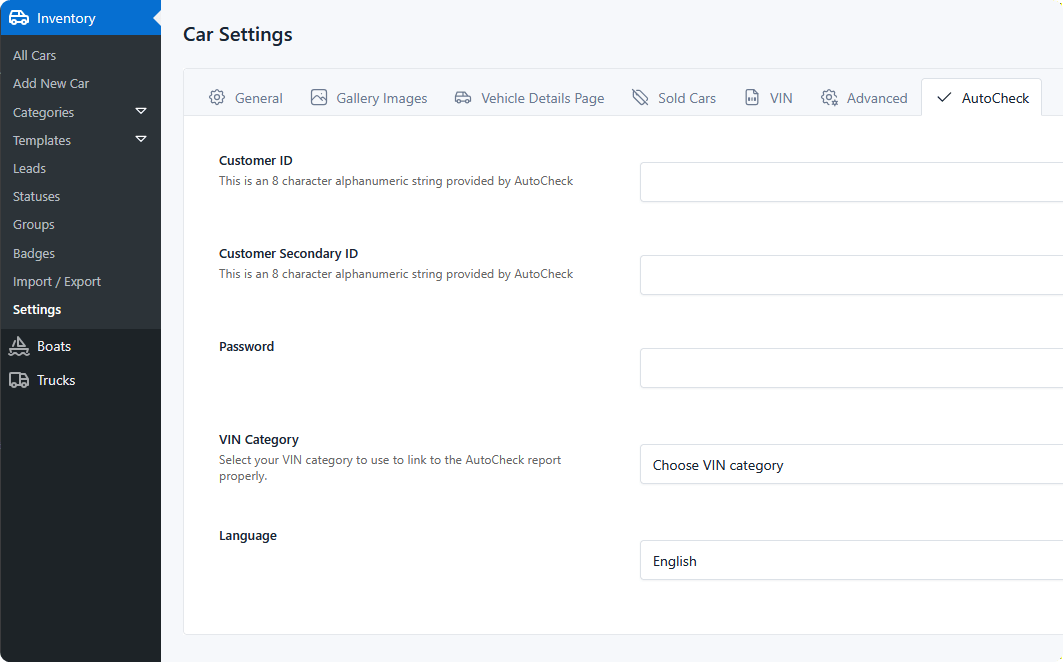
Settings belong to the listing type, so a site running Cars and Trucks as separate types configures each one — including entering the credentials twice.
Here you will find five key options that must be properly configured to ensure AutoCheck reports generate correctly.
Credentials
| Setting | Description |
|---|---|
| Customer ID | Your AutoCheck-provided Customer ID, required to authenticate your access to AutoCheck services. An 8-character alphanumeric string. |
| Customer Secondary ID | Some AutoCheck accounts require a secondary ID for authentication. If your account includes this, enter it here. Also 8 characters. |
| Password | Your AutoCheck account password, used alongside the Customer ID(s) to authenticate API requests and retrieve reports. |
All three come from AutoCheck (Experian) when your dealer account is set up. If you don't have them, contact your AutoCheck representative rather than guessing — a wrong value produces an error response rather than a report.
These are live account credentials
They are stored in your site's settings and readable by anyone with access to the DMS settings screen. Treat access to that screen accordingly, and rotate the password with AutoCheck if you suspect it has leaked.
VIN Category
This setting specifies which of your listing categories contains the VIN. Since AutoCheck reports are generated based on a vehicle's VIN (Vehicle Identification Number), selecting the correct category ensures the report fetches accurate data.
The dropdown lists every category on the current listing type. Pick the one whose value on each listing is the 17-character VIN.
This setting is what switches the feature on. Until a VIN category is selected, the AutoCheck element renders nothing for visitors — see Troubleshooting.
Language
Choose the language in which the AutoCheck report will be displayed. The available options are:
- English
- Spanish
The language applies to the report AutoCheck returns, not to your own site's content. It is set per listing type, so all reports from that type come back in the same language regardless of the visitor.
Once these settings are configured, AutoCheck reports will be available for eligible vehicles. Next, add the link — see AutoCheck Element.