Adding Income & Expense Data to Listings
Once the extension is activated you can begin adding the income and expenses for each listing by going to the edit page:
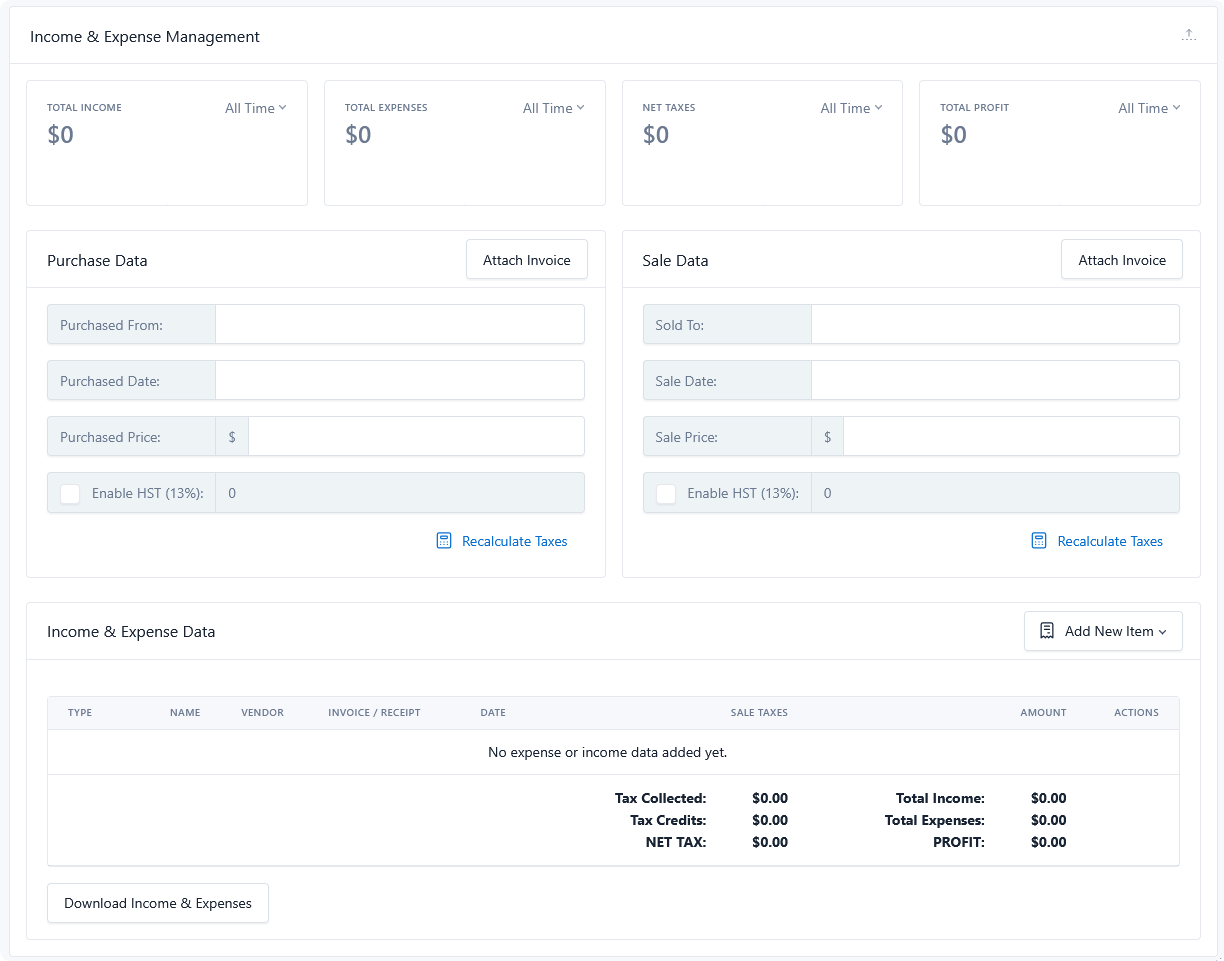
From here you can record data about purchasing the vehicle, selling the vehicle, and any expenses or income from that vehicle during the time in between.
The meta box is titled Income & Expense Management and sits with the listing's other panels.
The summary cards
Four cards across the top show this listing's running figures, each with its own graph and a timeframe dropdown:
| Card | Shows |
|---|---|
| Total Income | Sale price plus every income line item |
| Total Expenses | Purchase price plus every expense line item |
| Net Taxes | Taxes collected on income and sale, less taxes paid on purchases and expenses |
| Total Profit | Income less expenses |
Net Taxes can be negative — that means you've paid more tax than you've collected on this vehicle, which is normal for a vehicle still in stock.
Purchase Data
What you paid, and the record of it.
| Field | Notes |
|---|---|
| Purchased From | The seller — auction, trade-in, wholesaler, private party |
| Purchased Date | Required for the vehicle to appear in reporting |
| Purchased Price | Required for the vehicle to appear in reporting |
| Purchased Taxes | Uses the tax rates configured in your DMS settings |
Attach Invoice opens the media library to attach the purchase invoice. Once attached, the button becomes an Invoice Options dropdown offering Change, View, and Remove.
Sale Data
The same shape, for the other end of the vehicle's life.
| Field | Notes |
|---|---|
| Sale To | The buyer |
| Sale Date | Until this is set, the sale price isn't counted as income |
| Sale Price | |
| Sale Taxes |
Leave the Sale Data card empty while the vehicle is in stock. Its purchase costs and expenses still appear in reporting; the profit figure simply stays negative until it sells.
Purchase and sale values are available on the front end
Both sets of fields are stored as listing data, so they can be displayed with listing elements on your templates. Think carefully before doing so — purchase price and vendor are internal figures you almost certainly don't want on a public VDP.
Income and expense line items
Below the two cards you add the individual transactions that happened between purchase and sale. Each is either an Expense (reconditioning, transport, parts, detailing) or an Income (a warranty, a doc fee, a deposit).
Both use the same fields:
| Field | Required | Notes |
|---|---|---|
| Name | Yes | Short label — "Detailing", "New tires" |
| Description | Yes | What it covered |
| Price | Yes | |
| Taxes | Calculated against the price using your configured tax rates | |
| Vendor | Remembered across listings, so it autocompletes next time | |
| Invoice Number | ||
| Invoice Date | Defaults to the vehicle's purchase date if left blank | |
| Invoice File | Attach the receipt or invoice from the media library |
Vendors
Vendor names entered here build a shared list across your whole site, so recurring suppliers autocomplete rather than being retyped — which also keeps the spelling consistent for reporting.
Invoice dates place items on the timeline
The invoice date determines where a line item lands in the graphs. An expense dated three weeks after purchase shows up three weeks along the timeline, not at the purchase point.
Leave it blank and the item falls on the purchase date, which is fine for costs incurred at acquisition but blurs the picture for later work. Setting real dates gives a truer view of when money was spent.
Potential profit
A potential profit figure appears alongside the listing's pricing fields, showing the margin between your recorded costs and the asking price. It updates as you change the price, so you can see the effect of a price adjustment before saving.
Next, review everything across the type — see Income & Expenses Page.