Setting Up Your Frazer Import
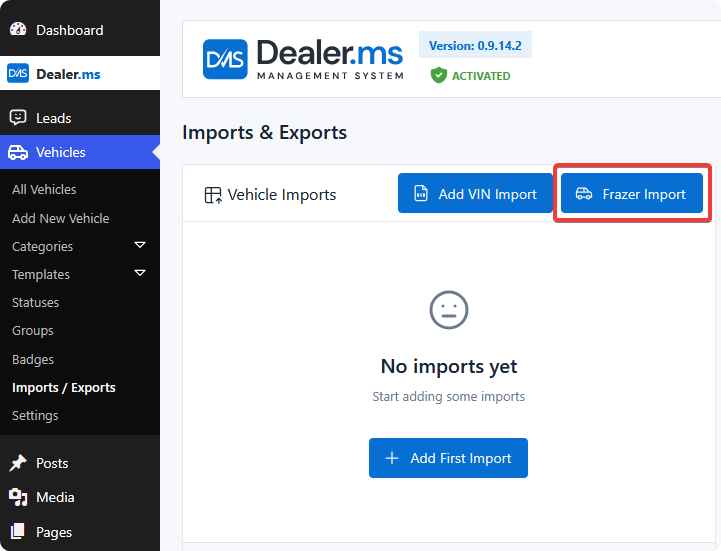
To set up your Frazer import, navigate to your listing type and click Import / Export. In this example the type is called Vehicles. Then click the Frazer Import button in the Vehicle Imports card.
The import is configured in three steps. You only do this once — after the final step, inventory keeps itself up to date.
Step 1 — Import Associations
Here you map Frazer's data onto your listing fields. Drag a column name (the blue badge) into a text field, and it's replaced with that vehicle's data at import time.
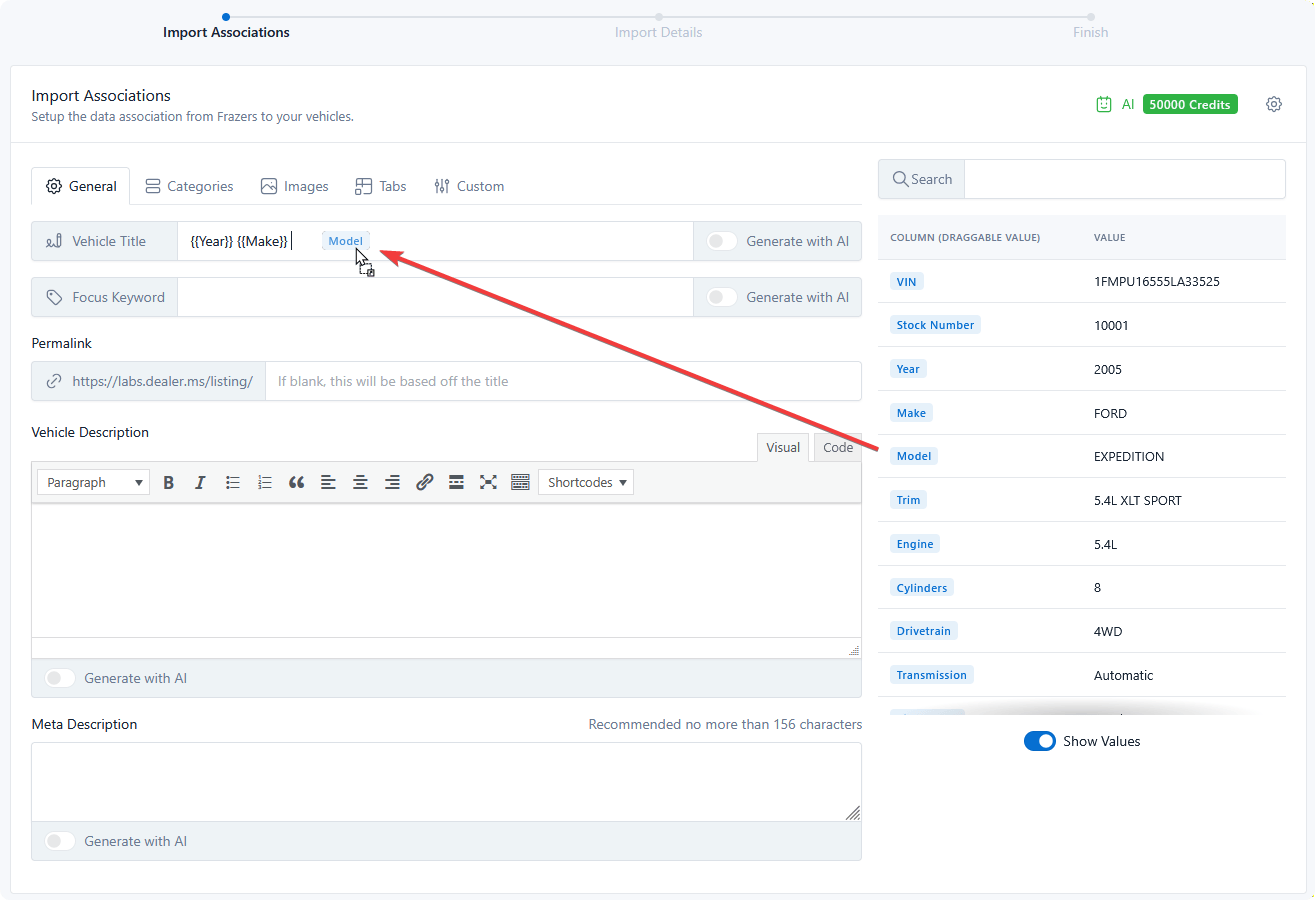
Fields accept more than one badge, along with your own text — so a title can be built as Year Make Model Trim and a description can wrap Frazer's comments in whatever wording you like.
Available Frazer data
Everything Frazer sends is available to drag:
| Group | Columns |
|---|---|
| Identity | VIN, Stock Number, Vehicle Type, Certified, Ready To Sell, Title Status |
| Vehicle | Year, Make, Model, Trim, Engine, Cylinders, Drivetrain, Transmission, Gears, Fuel, Mileage |
| Appearance | Exterior Color, Interior Color |
| Media | Photos, Video, Features, Comments |
| Pricing | Retail Price, Internet Price, Wholesale Price, Other Price, Market Value |
| Cost | Original Cost, Total Cost |
| Finance | Down Payment, Weekly Payment, Monthly Payment |
| Dates | Lot Date |
Photos arrive as a list and are imported as the listing's gallery. Features arrive as a list too, suitable for a multi-value category.
Pick the right price column
Frazer carries several prices. Internet Price is usually what belongs on your website, with Retail Price as the original or crossed-out figure.
Cost columns — Original Cost, Total Cost, Wholesale Price — are internal. Mapping those to anything publicly visible puts your margins on your website.
Step 2 — Import Details
The second step controls how imported vehicles are created and updated.
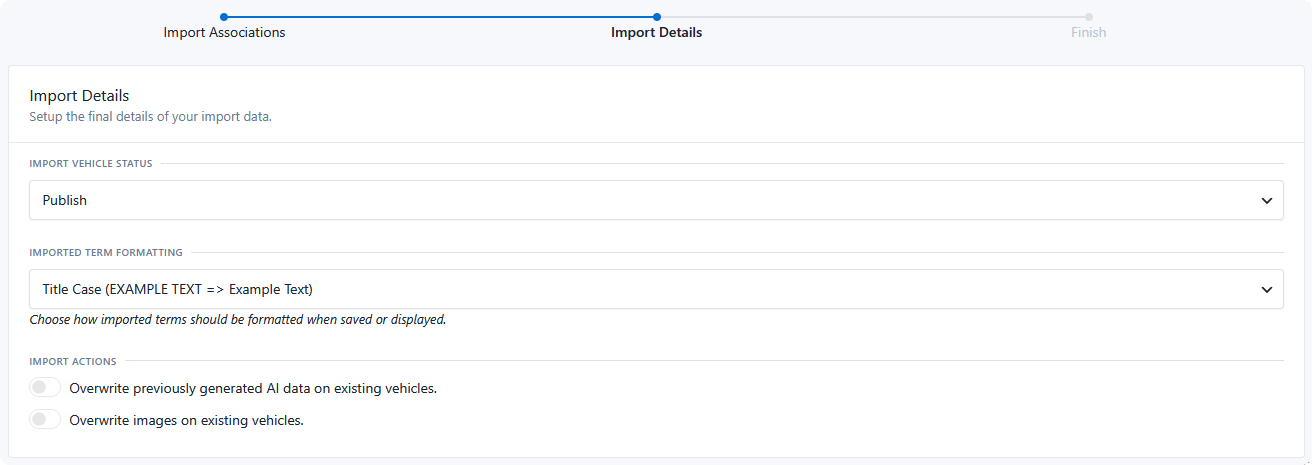
Import Vehicle Status
If you don't want imported vehicles to go live immediately, change the status from Publish to Draft. They'll import and wait for review.
Useful for a first run, so you can check a handful of listings before anything is public.
Imported Term Formatting
Frazer stores most text in capitals, which reads badly on a website. This setting rewrites it as values are imported:
| Option | EXAMPLE TEXT becomes |
|---|---|
| Preserve Case | EXAMPLE TEXT |
| Title Case | Example Text |
| First Letter Capitalized | Example text |
| Lowercase | example text |
Title Case suits most dealers — it turns FORD EXPEDITION into Ford Expedition.
Formatting is applied only to text-like values such as Make, Model, Trim, Transmission, and colours. VINs, stock numbers, prices, and mileage are left exactly as Frazer sends them.
Import Actions
These control whether existing listings are overwritten when the import runs again. They determine what happens on every subsequent sync, not just the initial pull — so if you edit descriptions or images on your website, set these to leave your changes alone.
Step 3 — Finish
The last step lets you pull in your Frazer inventory by clicking Pull Entire Frazer Inventory.
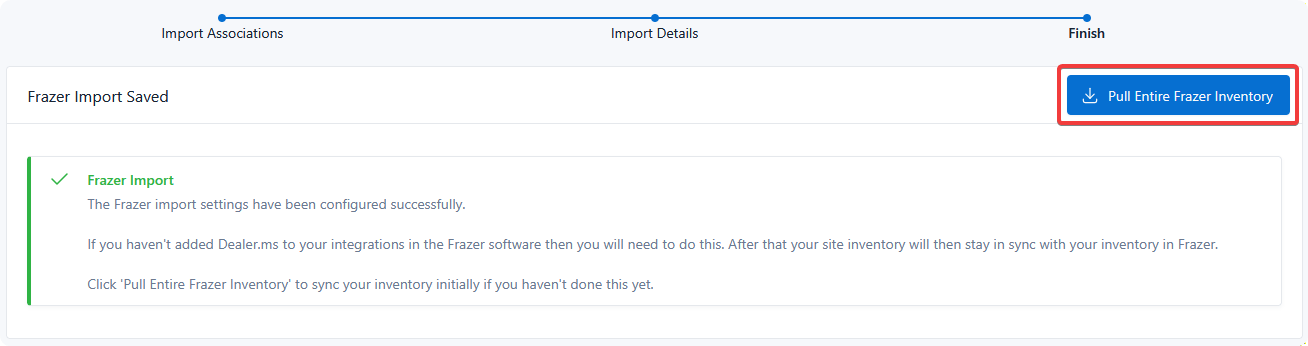
That fetches everything currently in Frazer and imports it using the settings above. Give it time on a large lot — it processes the full inventory in one pass, and the screen reports how many listings were imported and updated.
Going forward, any inventory changes made in your Frazer software are automatically pushed to your website within minutes.
You only need the pull button again if the two get out of step — after a bulk change in Frazer, or if syncing was interrupted.
This step depends on the Frazer side being configured
If you haven't added Dealer.ms to your integrations inside the Frazer software, do that now. Without it, the pull may work but ongoing updates won't arrive.
What happens on an ongoing sync
| In Frazer | On your site |
|---|---|
| A vehicle is added | A listing is created |
| A vehicle is edited | The matching listing is updated, subject to your Import Actions |
| A vehicle is removed | The matching listing is moved to trash |
Listings are matched on Frazer's own vehicle ID, so the link survives renames and price changes.