Settings
Within your listing type settings you can configure the PDF Builder options:
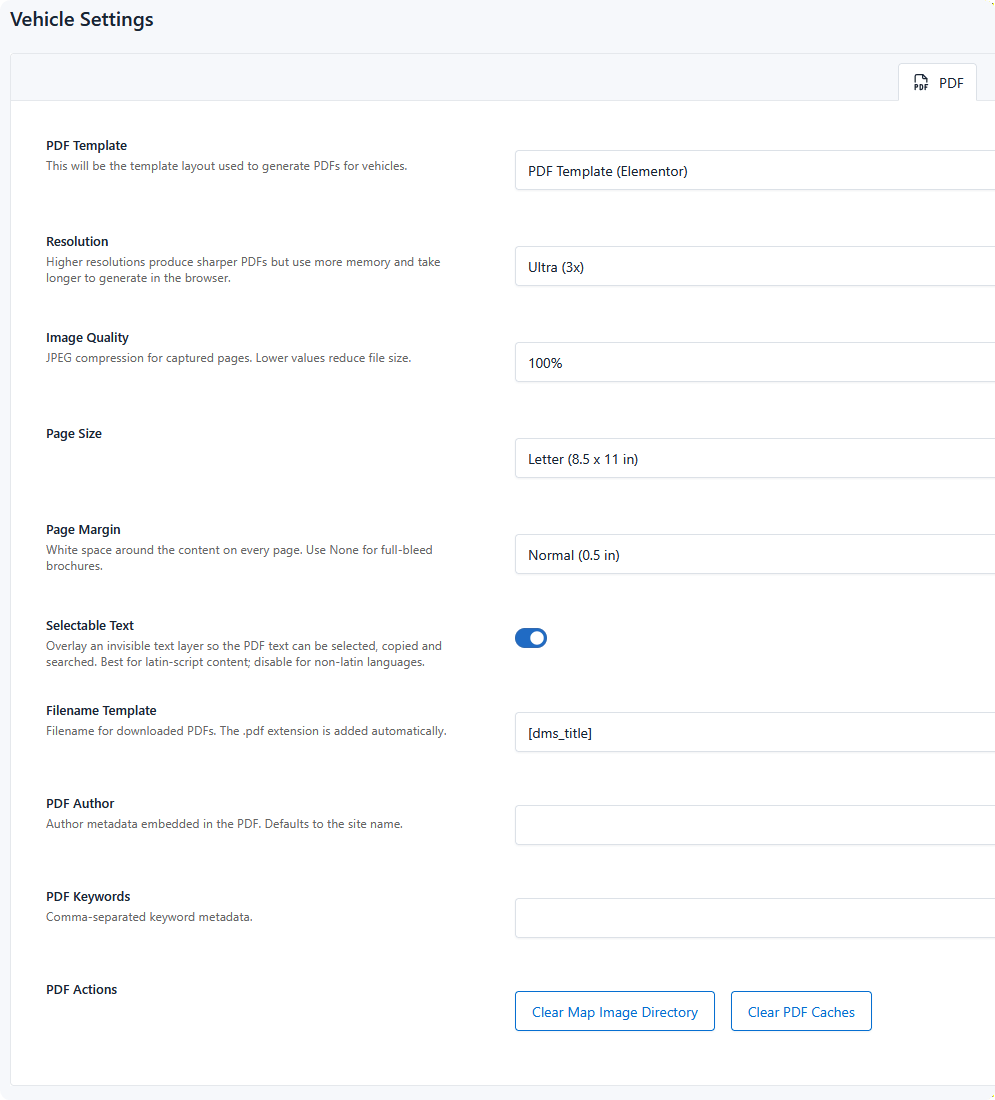
Settings are per listing type, so Cars and Boats can use different templates and page sizes.
PDF Template
Which template is used to generate PDFs for this type.
Having the template as a setting means you can build a new layout without disturbing the one in use, and switch between layouts for special events. See PDF Templates.
Leaving this unset switches the feature off for the type — no engine is loaded and no PDFs are generated.
Output quality
Resolution
How sharply pages are captured. Higher resolutions produce sharper PDFs but use more memory and take longer to generate in the visitor's browser.
| Option | Scale |
|---|---|
| Low | 1× |
| Medium | 1.5× |
| High (default) | 2× |
| Ultra | 3× |
High suits most dealers. Step up to Ultra only for a document that will be professionally printed — on a long template it's noticeably slower, and on an older phone it can be enough to fail.
Image Quality
JPEG compression for captured pages. Lower values reduce file size.
Options run from 100% down to 80%, defaulting to 90%. The difference between 90% and 100% is hard to see on screen but meaningful in file size — worth caring about if the PDF is going to be emailed.
The two settings compound
Resolution and Image Quality both affect size and speed. Ultra at 100% can produce a file several times larger than High at 90%, for a difference most customers won't notice on a printed sheet.
Page setup
Page Size
Letter (8.5 × 11 in, the default), A4 (210 × 297 mm), or Legal (8.5 × 14 in).
Choose for where your customers are — Letter in North America, A4 most other places. Printing an A4 layout on Letter paper scales it and can clip edges.
Page Margin
White space around the content on every page.
| Option | Size |
|---|---|
| None (full bleed) | 0 |
| Narrow | 0.25 in |
| Normal (default) | 0.5 in |
| Wide | 1 in |
None suits brochures where a photo or colour band runs to the edge of the sheet — though most consumer printers can't actually print to the edge, so a full-bleed design will be trimmed or scaled when printed at home.
The Normal default suits ordinary printing. Pick None only for a template designed to run to the edge.
Selectable Text
Overlays an invisible text layer so the PDF's text can be selected, copied, and searched. On by default.
Worth leaving on: it makes the document accessible to screen readers, searchable in a PDF viewer, and lets a customer copy a VIN rather than retype it.
Turn it off for non-latin languages, where the overlay may not align correctly with the rendered text.
Filename Template
The filename for downloaded PDFs. The .pdf extension is added automatically, so don't include it.
Defaults to [dms_title], giving a file named after the vehicle. Dynamic tags work here, so you can build something more specific:
A meaningful filename matters more than it sounds — a customer comparing three vehicles ends up with three files in a downloads folder, and 2021-honda-civic-ex.pdf is easier to find than document.pdf.
PDF metadata
PDF Author
Author metadata embedded in the document. Defaults to your site name if left empty.
PDF Subject
Subject metadata embedded in the document. Dynamic tags work here. Defaults to the listing title followed by your site name if left empty.
PDF Keywords
Comma-separated keyword metadata.
All three appear in a PDF reader's document properties rather than on the page. Worth filling in for documents that will be archived or shared onward.
PDF Actions
Two maintenance buttons:
| Button | Clears |
|---|---|
| Clear Map Image Directory | Cached static map images generated for PDFs |
| Clear PDF Caches | Other cached data used during generation |
You shouldn't need these routinely. Reach for them if map images look stale or generation starts behaving oddly after template changes — clearing simply forces the next download to rebuild what it needs.