Creating a Search Result Item (SRI)
An SRI template defines the markup for a single row in the autocomplete dropdown. Build this before adding the element — the element asks you to pick one.
Create an SRI template by navigating to your listing type and, under Templates, clicking SRI - Search Result Item, or the Add New button and then selecting SRI (Search Result Item):
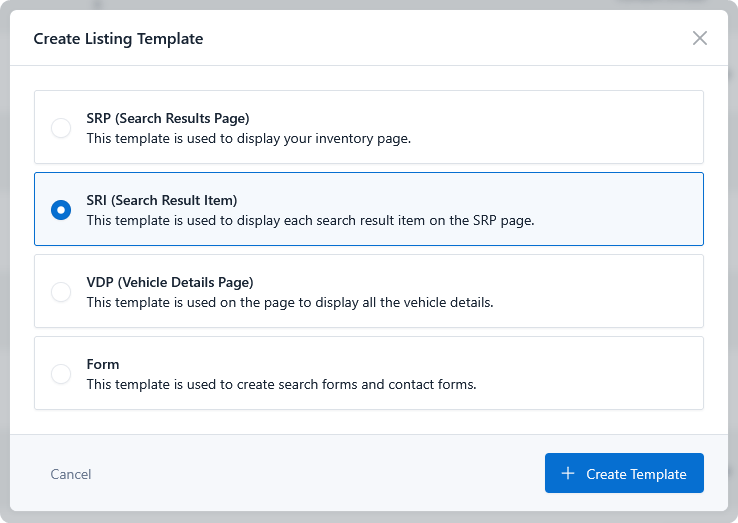
Templates belong to a listing type, so a Cars SRI is only offered to an Search Autocomplete element set to search Cars.
Designing the template
Build it like any other DMS template, using the listing elements available in your page builder — image, title, price, mileage, and so on. Keep in mind where it will be shown:
- Rows are narrow and stacked. The template renders inside a dropdown constrained to the width of the search input, not a full-width grid.
- Keep it to a few fields. A thumbnail, title, and price read well at a glance; a full spec table does not.
- Height multiplies. Whatever height one row occupies is repeated for every match, so a tall template means heavy scrolling.
- Don't add links. The whole row is already clickable and navigates to the listing — a nested link inside it fights that behavior.
How it gets rendered
Each match is rendered through your SRI template and wrapped in a clickable container that carries the listing's URL. Your builder's CSS for the template is delivered along with the results, so styling set in the builder carries over to the dropdown.
One consequence worth knowing: with Elementor, the template's generated CSS is printed by the page containing the search input. If you edit the SRI template and the dropdown still looks stale, regenerate the Elementor CSS (re-save the template) and reload the page holding the input.
Next, add the input itself — see Search Autocomplete Element.