PDF Templates
After activating the PDF Builder you can begin creating a PDF layout for your inventory. Go to the Templates section for your listing type and either select PDF, or click Add New and choose PDF:
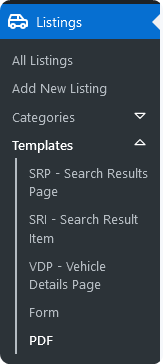
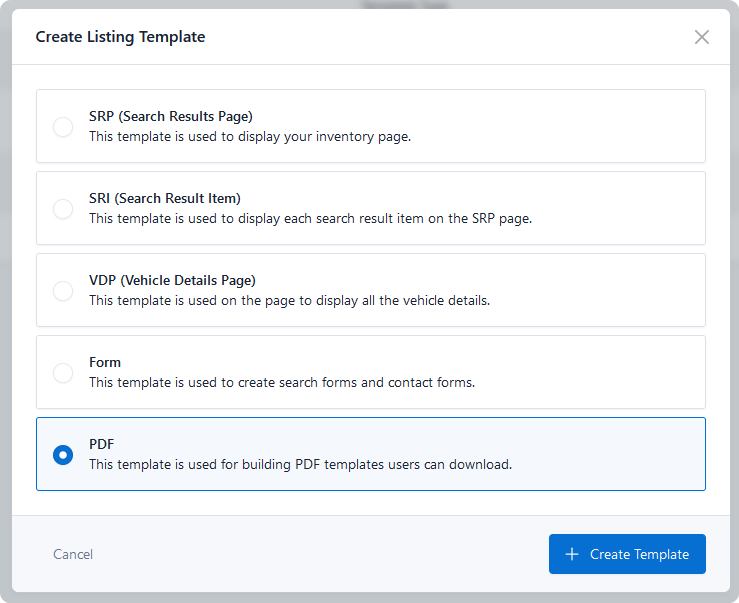
Templates belong to a listing type, so a PDF built under Cars is offered only to Cars.
Building the layout
Once you start creating the PDF template you can select from a set of elements and produce a PDF with your custom layout:
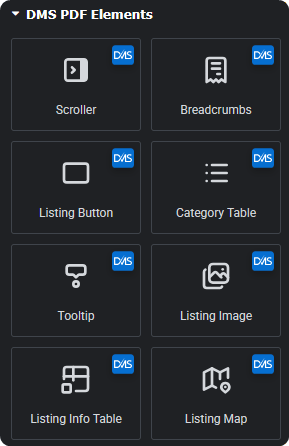
The element set is deliberately narrower than a normal page template. A PDF has fixed page dimensions and no scrolling, hover, or interaction — so elements that depend on those don't apply.
Design for the page size you've selected in Settings. A layout built to fill a screen will paginate awkwardly on Letter or A4.
Preview by downloading
The builder preview shows the layout, but only a real download shows pagination, image quality, and how the fonts render. Generate one before you consider the template finished — and check it on the page size your customers will actually print.
QR code element
PDF templates can also use a special QR code element:
This lets you put a QR code in the PDF linking to the listing, or to a custom URL of your choice.
| Setting | Description | Default |
|---|---|---|
| Encodes | Listing URL links back to the vehicle's page. Custom value encodes anything you enter. | Listing URL |
| Custom Value | The URL or text to encode. Shown when Encodes is set to Custom value. | — |
| Size (px) | Size of the rendered code. | 150 |
| Alignment | Left, centre, or right within its container. | Center |
| Code Color | Colour of the code itself. | Black |
| Background Color | Colour behind the code. | White |
Both colour settings accept a Site Settings global colour, so a code bound to your primary colour follows a re-skin automatically.
Making a QR code that actually scans
- Keep the contrast strong. Dark code on a light background. A brand-coloured code on a mid-toned background often won't scan at all.
- Don't shrink it too far. 150px is a sensible floor for print; below that, phone cameras struggle.
- Leave white space around it. Codes need a quiet margin to be recognised — don't butt it against text or a border.
- Test the printed sheet, not just the screen. Print the PDF and scan it with a phone before rolling it out across your inventory.
Listing URL is the common choice — the brochure a customer takes away leads straight back to the live listing, with current pricing and photos.
Multiple templates
You can build more than one PDF template per type and switch between them in the type's settings. Useful for:
- A seasonal or event layout — a sale brochure you swap in for a weekend, then swap back.
- A window sheet alongside a customer brochure, using different page sizes.
- Testing a redesign without touching the layout currently in use.
Only the template selected in Settings is used for downloads, so an unused template sits harmlessly until you switch to it.