Income & Expenses Page
Once you have your income and expense data added for all your listings, you can view it all under each listing type's menu under Income & Expenses:
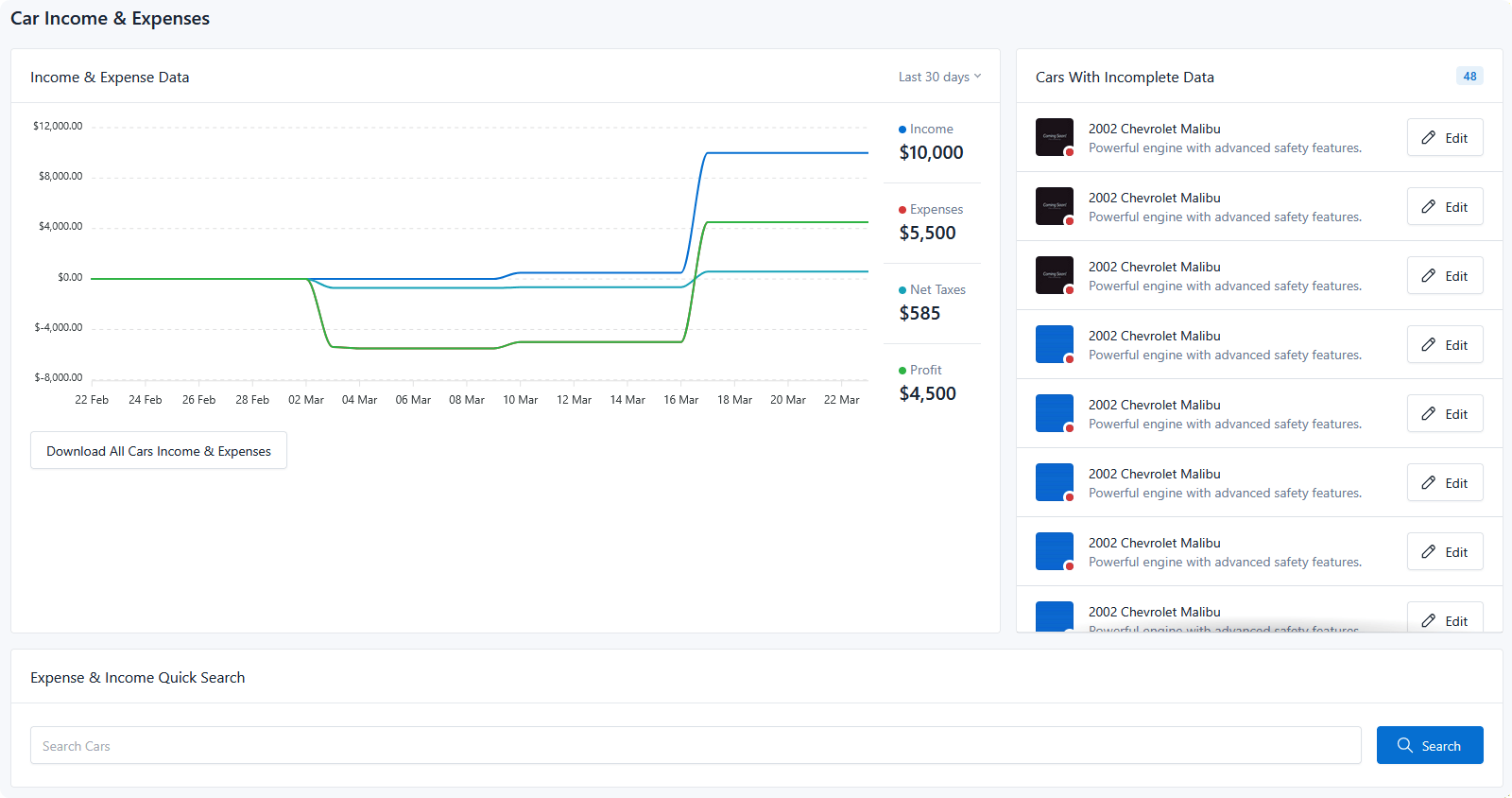
On the left you can view a graph of the total, filter by a timeframe, and download all income and expense data. On the right you can quickly find and add the cost data to any vehicle missing the data. On the bottom you can do a quick search to pull up income and cost data on any of your inventory listings.
There is one of these pages per listing type, so Cars and Boats each report separately.
The graph
Four series are plotted over time, with running totals beside them:
| Series | Colour | Meaning |
|---|---|---|
| Income | Blue | Sale prices plus income line items |
| Expenses | Red | Purchase prices plus expense line items |
| Net Taxes | Teal | Taxes collected less taxes paid |
| Profit | Green | Income less expenses |
Values are placed on the timeline by date: purchase prices on the purchase date, sale prices on the sale date, and line items on their invoice date.
Timeframe
The dropdown in the card header filters the range. Selecting a timeframe includes listings purchased or sold within it, so a vehicle bought last year and sold last month still appears in a recent window — its sale falls inside the range.
With no timeframe selected, the graph runs from your earliest recorded purchase to today.
Download all data
The Download All Listings Income & Expenses button exports the type's complete financial record as a CSV — every purchase, sale, income, and expense row.
Use it for accounting handoffs, or for analysis your dealership does in a spreadsheet. The link is single-use and tied to your session, so send the downloaded file rather than the link itself.
Listings with incomplete data
The panel on the right lists every listing missing a purchase price or a sale price, with a count badge.
This matters because a listing without a purchase price and date is invisible to the graphs — see Purchase price and purchase date drive everything. The panel is the fastest route to a complete picture.
Each row has an Edit button that expands an inline form, so you can fill the missing figures without opening the listing. Save and the row updates in place.
The panel disappears entirely when nothing is missing, and the graph card widens to fill the space — an empty panel is a good sign, not a broken one.
Vehicles in stock will always be listed here
A vehicle you haven't sold yet has no sale price, so it appears in this panel by design. Read the panel as "needs attention", not "is wrong" — the entries worth acting on are the ones missing a purchase price.
Quick search
The search at the bottom finds any listing of that type by name and pulls up its income and cost data inline, without leaving the page.
Use it to check a specific vehicle's numbers, or to add a missing expense to a vehicle you've just been invoiced for.