Listing Tags
When setting the notifications in Gravity Forms you will now have access to the values for all your inventory types, to attach listing information to the outgoing email:
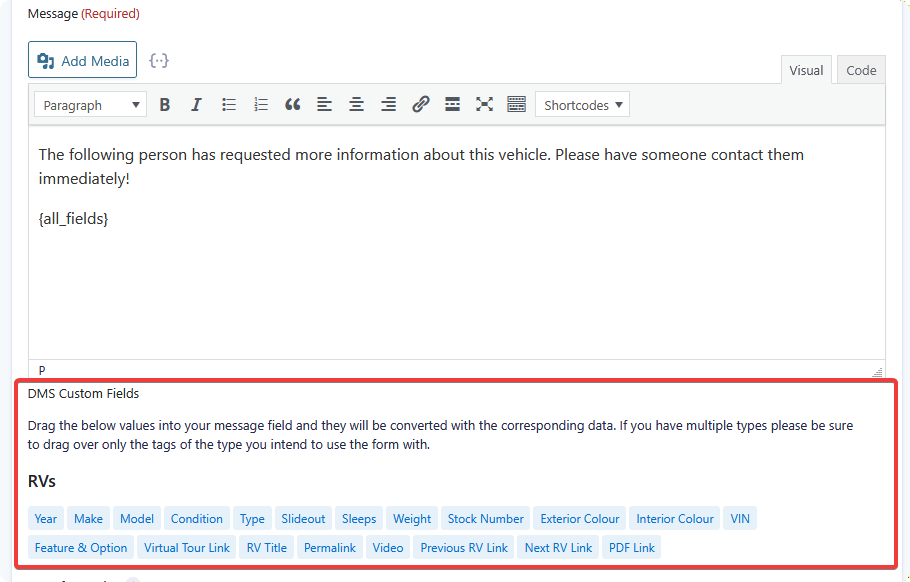
Where to find them
In Gravity Forms, open your form and go to Settings → Notifications, then edit a notification. Below the Message field you'll find a DMS Custom Fields panel.
Drag the values from that panel into your message field and they will be converted with the corresponding data when the notification is sent. Tags are grouped under a heading per listing type.
The panel reloads when you switch between notifications, so it's available on every notification a form has — the admin notification to your team, an autoresponder to the buyer, or any additional ones you've added.
Use one type's tags per form
If you have multiple listing types, drag over only the tags of the type you intend to use the form with. A form placed on Cars templates should carry Cars tags. Tags from another type won't resolve.
Category tags
Every category on a listing type gets a tag named after its slug:
A VIN category produces [dms_category_vin], a Stock Number category produces [dms_category_stock-number], and so on. These are the tags that carry your inventory data — mileage, trim, colour, engine, whatever you track.
Take them from the panel rather than typing them, so the slug is always right.
Listing tags
Alongside the categories, each type offers:
| Tag | Inserts |
|---|---|
[dms_title] |
The listing's title |
[dms_permalink] |
The full URL of the listing |
[dms_video] |
The listing's video URL |
[dms_prev] |
Link to the previous listing |
[dms_next] |
Link to the next listing |
[dms_title] and [dms_permalink] are the two most notifications need — one names the vehicle, the other lets your team open it in a click.
UTM tags
Attribution parameters are available as tags too:
| Tag | Inserts |
|---|---|
[dms_utm_source] |
UTM Source |
[dms_utm_medium] |
UTM Medium |
[dms_utm_campaign] |
UTM Campaign |
[dms_utm_term] |
UTM Term |
[dms_utm_content] |
UTM Content |
These read from the URL the visitor arrived on, falling back to DMS's stored UTM data if the parameters aren't on the current page. That means a lead can carry its campaign attribution even when the visitor browsed several pages between the ad click and the enquiry.
Adding a line like this to your admin notification tells your team where each lead came from:
A worked example
An admin notification message combining the above:
New enquiry on [dms_title]

Vehicle:  [dms_title]
VIN:      [dms_category_vin]
Stock #:  [dms_category_stock-number]
Link:     [dms_permalink]

Source:   [dms_utm_source] / [dms_utm_campaign]

{all_fields}
{all_fields} is Gravity Forms' own tag for the submitted form data — DMS tags sit alongside Gravity Forms merge tags without conflict, since the two use different bracket styles.